First step - obtaining license

Top  Previous  Next

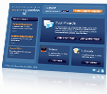
On your first of run of SourceGuardian™ 7.1 for PHP you should see following screen:


license


This screen means that you need to obtain a license first in order to run SourceGuardian™ . In general you can do this via two different ways.


1. Obtaining a license from the application itself.


This is the fastest way to obtain a license, but to do it you need a direct connection to the internet or configure a Proxy server so that the SourceGuardian™ 7.1 application can connect to the internet.


NOTE: Some firewalls may prohibit SourceGuardian™ from connecting to the internet, so you may have to enable internet access for SourceGuardian™ or obtain your license by another method (see 2.). On how to enable internet access for a custom application with your firewall please consult your firewall documentation.


When you purchase the full version of SourceGuardian™ 7.1 for PHP, or request demo version of it, you will receive an email with details on how to access your profile on our site. This email contains a user name and a profile password. Just type them into the 'User name' and 'Password' fields and click on the 'Get License' button. After the license has been downloaded you will see a message box saying: "Application will now close. Please start the application again to activate your copy". Press 'Ok' and then start the program again. If everything has installed correct, the application will start normally. If anything has gone wrong with the installation, you will see the 'License error' screen again. Make sure you enter your user name and password correctly, check your internet settings and try again. If this still will not allow access please try a different method (see 2.).


Configuring internet connection. This is useful if you normally need to access the internet via a proxy server. Click on the 'Internet Settings' button and you will see following window:


internet


Direct connection - This is selected by default and is used when you have a direct internet connection.

Use Proxy Server - Select this option if you are behind a Proxy Server. Enter the Proxy Server address and the Port. Also the Proxy Username and Password should be entered if it is applicable. Please consult your network administrator about information about your Proxy Server.


2. Obtaining a license via the "your profile" section on our site.


When you are unable to obtain license via the normally method, you can use this method to retrieve and download a license file. Go to the profile login page on the SourceGuardian.com website. Type your user name and password.


Once you have entered the system select registration code from within the SourceGuardian™ 7.1 for PHP application (by double clicking on it). Copy and paste it to the corresponding field of the "your profile" area on our site ("Please enter your registration key here to generate license:").


When you have done the above, Click on 'Submit' and this will generate license. To download it click on the 'Download' link in the 'Available licenses' section. Save this license, somewhere on your PC. Then in the SourceGuardian™ 7.1 for PHP application click on the 'Browse' button, select the license file you just downloaded and saved. You should now see a message box saying 'Application will now close. Please start SourceGuardian™ 7.1 for PHP again to activate your license!'. Click Ok. And start SourceGuardian™ 7.1 for PHP again.